Run a WordPress backup on your computer, without the terminal.
Your host gave you a backup: a folder of files and a database. The app turns it into a running site on your Mac, on the same PHP and database version as the host, with nothing in the folder changed. Then your AI can work on it.
Where people get stuck
A WordPress site is not a folder you can open in a browser. It needs PHP, a database with your content in it, and a web server wired to both. The usual answers are a local tool with its own ideas about where files live, or Docker with a compose file somebody found online — and a backup that only imports after an hour of reading.
A backup, a folder, a Start button
Download the backup your host offers — WP Engine, Pressidium and most managed hosts
give you the whole site as a folder plus a .sql file. Add that folder to
the app. It recognises WordPress, lists the database backups it finds, and asks which
one to use. Press Start.
- WordPress runs on the PHP version you pick, 7.4 through 8.5, to match the host.
- The database runs on MariaDB or MySQL, your choice, and the backup is imported into it once. After that, starting takes seconds.
- Nothing in your folder is rewritten. The app's own
wp-config.phpshadows the backup's inside the container, pointing at the local database and keeping every other setting. - Only this computer can open it. Stop takes it down; your content stays for the next Start.
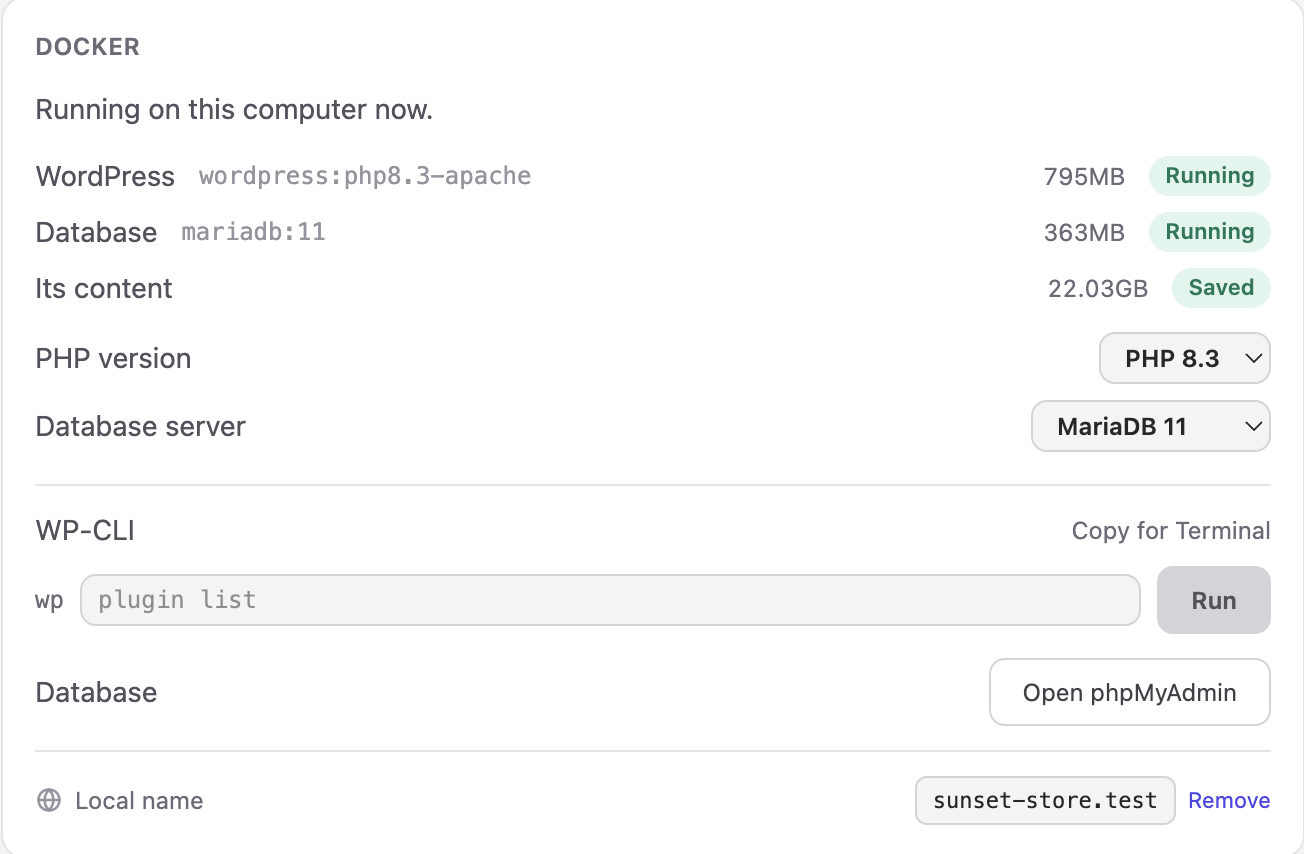
WP-CLI and phpMyAdmin, when you want them
Two tools sit on the project page for anyone who knows them. WP-CLI runs one command at a time against the running site, with what it printed underneath. phpMyAdmin opens the database in your browser, already signed in. Neither is required.
A name, with https
Give the site a name like my-shop.test and it opens there, with a real
padlock, instead of at 127.0.0.1 and a port that changes every time. The
computer asks for your permission once. WordPress is told its home is that name, so
every link on the site uses it.
Your AI can run it too
Connect Claude Code, Codex or Cursor on the app's AI page, and it can start and stop the site, run WP-CLI, read the PHP errors out of the log, query the database and sign in to the dashboard — from its own chat, while you watch the site change in the browser. What that looks like →
What this is not
It is not a way to publish WordPress. Netlify and Vercel do not run PHP, and the app says so plainly instead of failing halfway. Your live site stays on your host; this is where you work on it, break it, fix it and see the result before the host does.
Step by step
- Install Docker Desktop. It is free; the app says so and links to it if it is missing.
- Download a backup from your host and unpack it into a folder.
- Add the folder to the app and pick the database backup it found.
- Press Start. The first time, the import takes as long as your database is big.
- Give it a name, connect your AI, and work on it.
Plain PHP works too. A folder of PHP files without WordPress runs the same way, on the PHP version you pick, without a database.
Read next
Have a site sitting in a folder? Set it free.
Download the app and put it on the internet today.