Publish what Codex built for you.
Codex is very good at writing a website into a folder. Getting that folder onto the internet is a different job, and it is the one this app does.
The folder is all it needs
Codex writes ordinary files into an ordinary folder. Point the app at that folder and it reads what is there: a static page, or a project with a build script it knows how to run. There is nothing to configure in the project and nothing to add to it.
It also notices Codex has been working there, from the AGENTS.md it leaves
behind, and says so on the project.
Start Codex in the right folder
One button opens a terminal in the project folder with Codex already running. It is a small thing, and it removes the most common way to waste ten minutes: asking an AI to change a site while it is sitting in the wrong directory.
If Codex is not on the computer yet, the app installs it for you. If it is there but signed out, the app says that instead of letting a long run fail at the end of it.
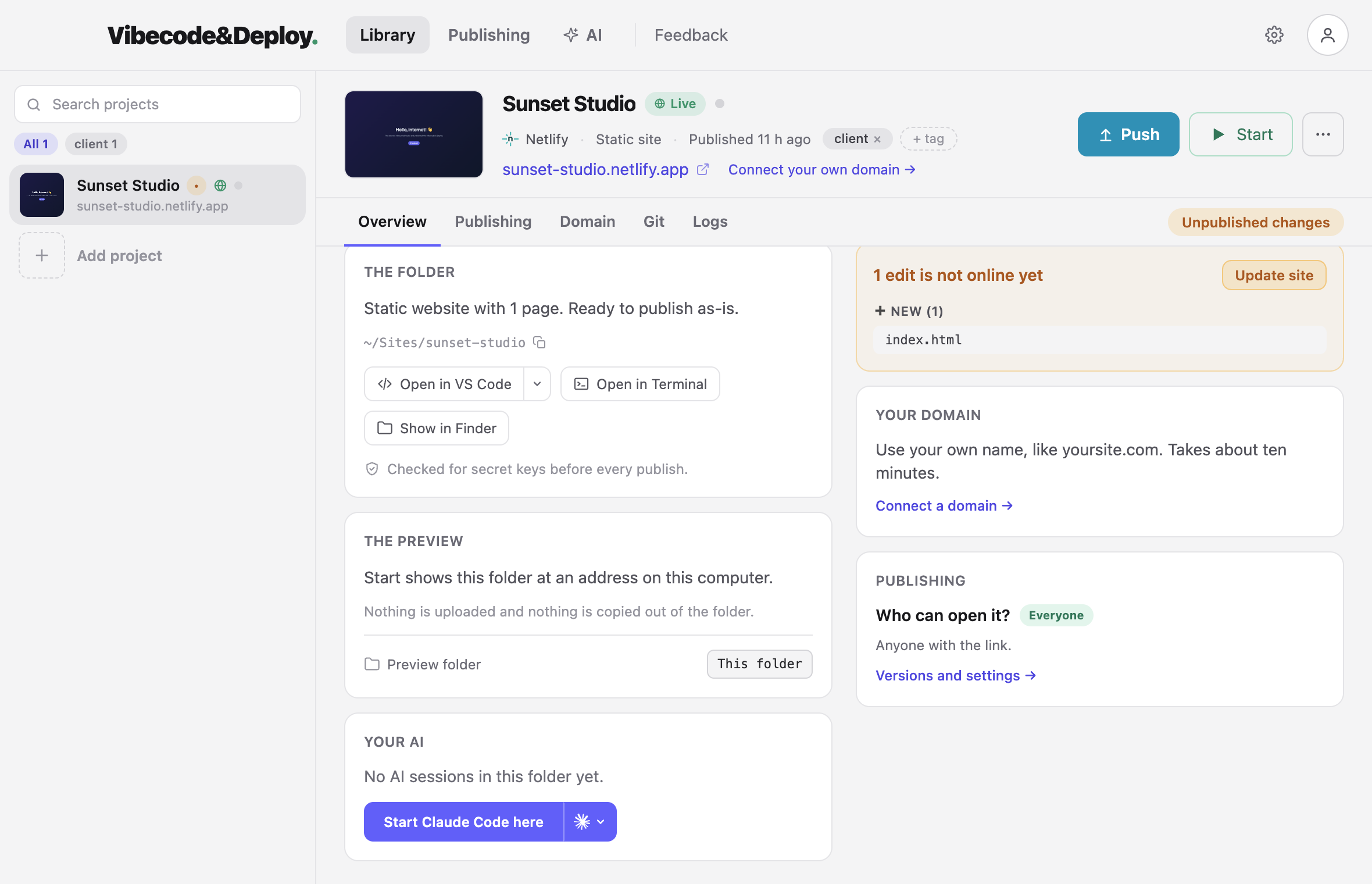
Start a new site from a sentence
A new project can start empty. Describe what you want — "a landing page for my dog walking service" — and Codex fills the folder with it, on your own computer, using your own Codex account. Then it is a project like any other: look at it, change it, publish it.
It can see when Codex is working
While a session is running, the project says so, and you can read along: what Codex is doing, file by file, read-only, in the app. When it stops, the app already knows the folder has changed and shows you what is not live yet.
What is checked before Codex's work goes public
An AI writing code will sometimes write an API key straight into a file. Every publish is scanned first — source files and built output — and a key stops the upload before anything is on the internet.
When that happens the app names the file and the line, and gives you a prompt to paste back into Codex that explains what to move and where.
Claude Code and Cursor work the same way. The app cares about the
folder, not about which tool wrote it. Claude Code gets the same "start it here"
button and a /deploy command as well — see
Claude Code and Cursor.
Codex can run your site, not only publish it
Press Connect beside Codex on the app's AI page and it gets a set of tools through MCP: what the project is and whether its local site is running, start and stop, WP-CLI, the site's logs with the file and line of a PHP error, the database, and a sign-in to the WordPress dashboard. From its own chat, in any folder inside the project. Nothing it can do deletes anything — removing a project, a database or an image stays in the app. What that looks like →
Step by step
- Build the site with Codex, as you already do.
- Open the app and add that folder.
- Press Start to see it on your own computer first.
- Connect Netlify or Vercel — your own account — and press Publish.
- Send the address to whoever asked for the site.
- When they want a change: describe it to Codex in the same folder, then press Publish again. The address does not change.
Read next
Codex wrote it. Now publish it.
Free while in beta. Mac now, Windows on request.